Connect your GitHub Organization
How to connect and update your GitHub Organization with your Tenki Workspace.
The connection between your GitHub Organization and your Tenki workspace is managed through the Tenki GitHub Application, which is responsible for creating and maintaining the link between both systems. You can install it using one of the following two methods:
1. Install the Tenki GitHub App during the onboarding
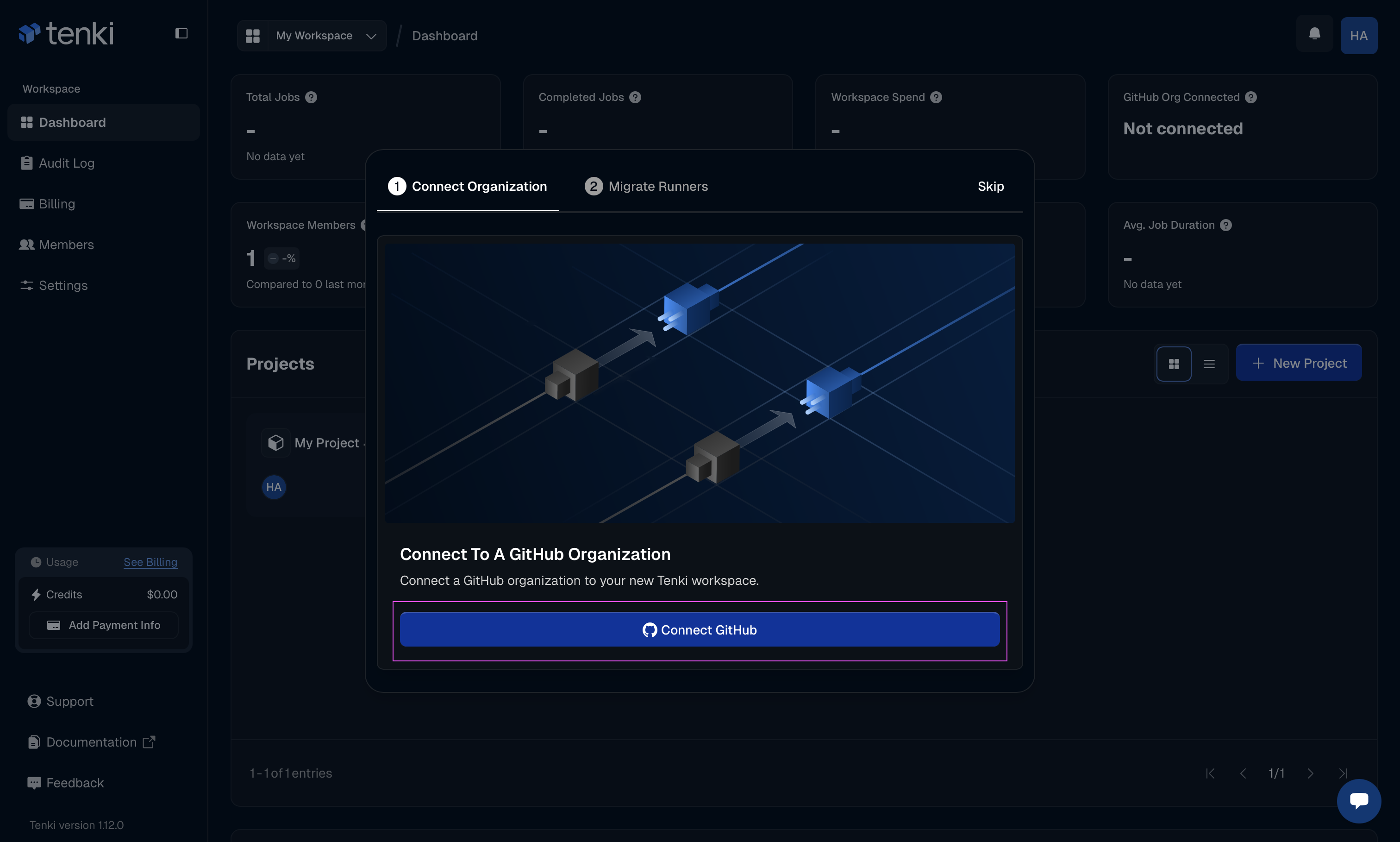
During new account onboarding, we walk you through each step, including installing the GitHub application. From here, click Connect GitHub to continue.
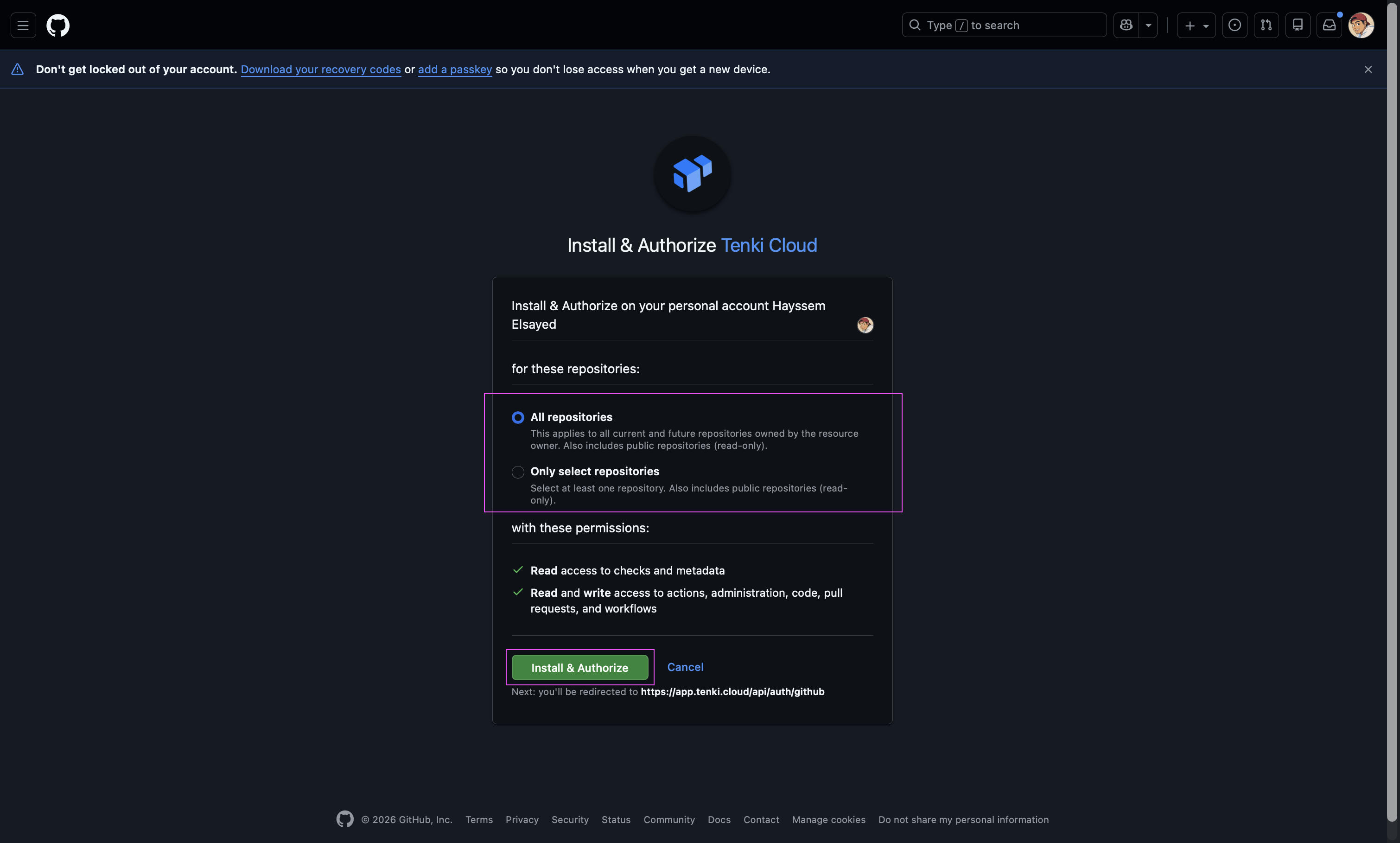
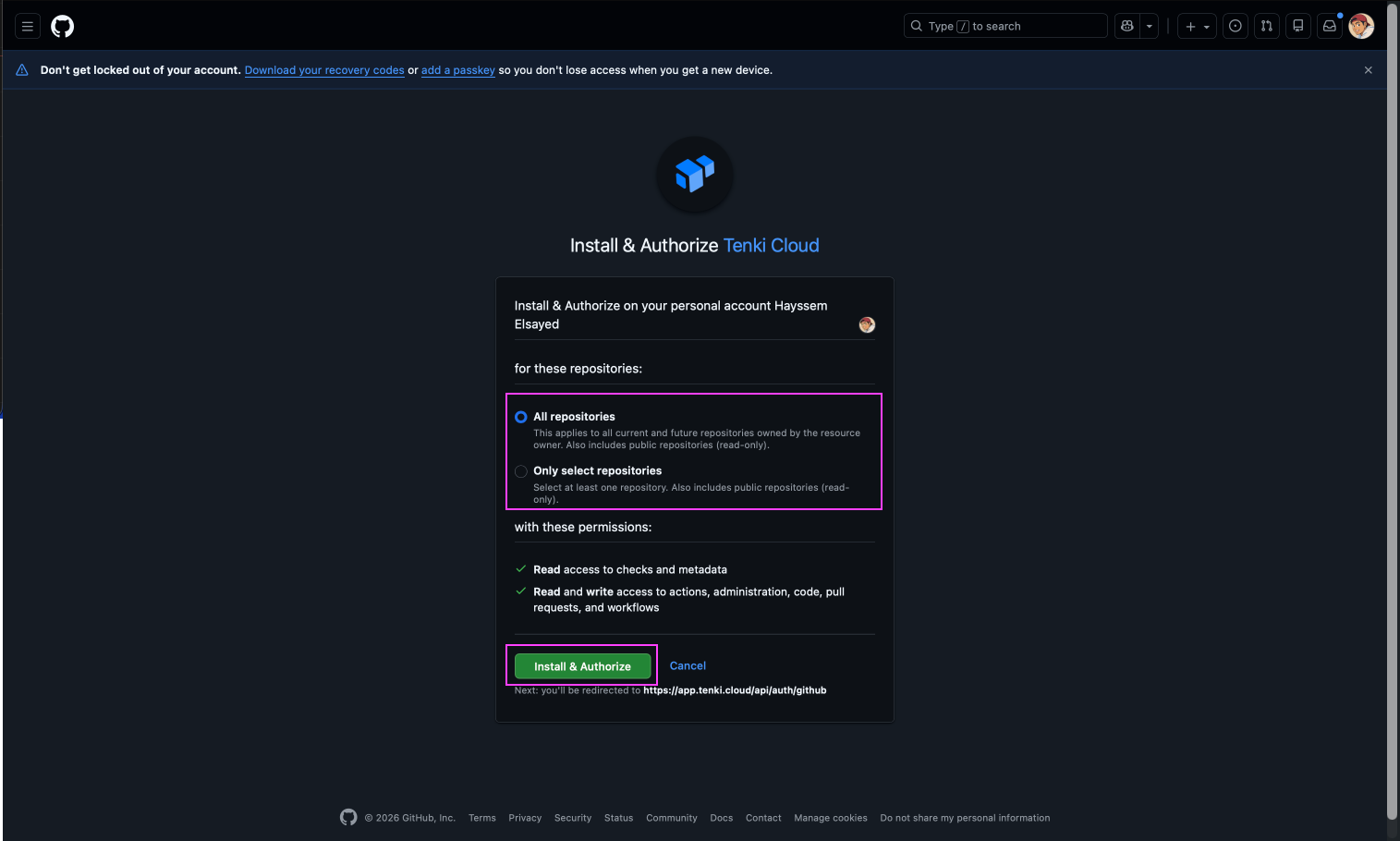
Then select the level of permissions you want to grant the application and click on Install & Authorize:
2. Install the Tenki GitHub App manually
If you don't want to use the automatic onboard or prefer to install the application on your own you need to do it as below:
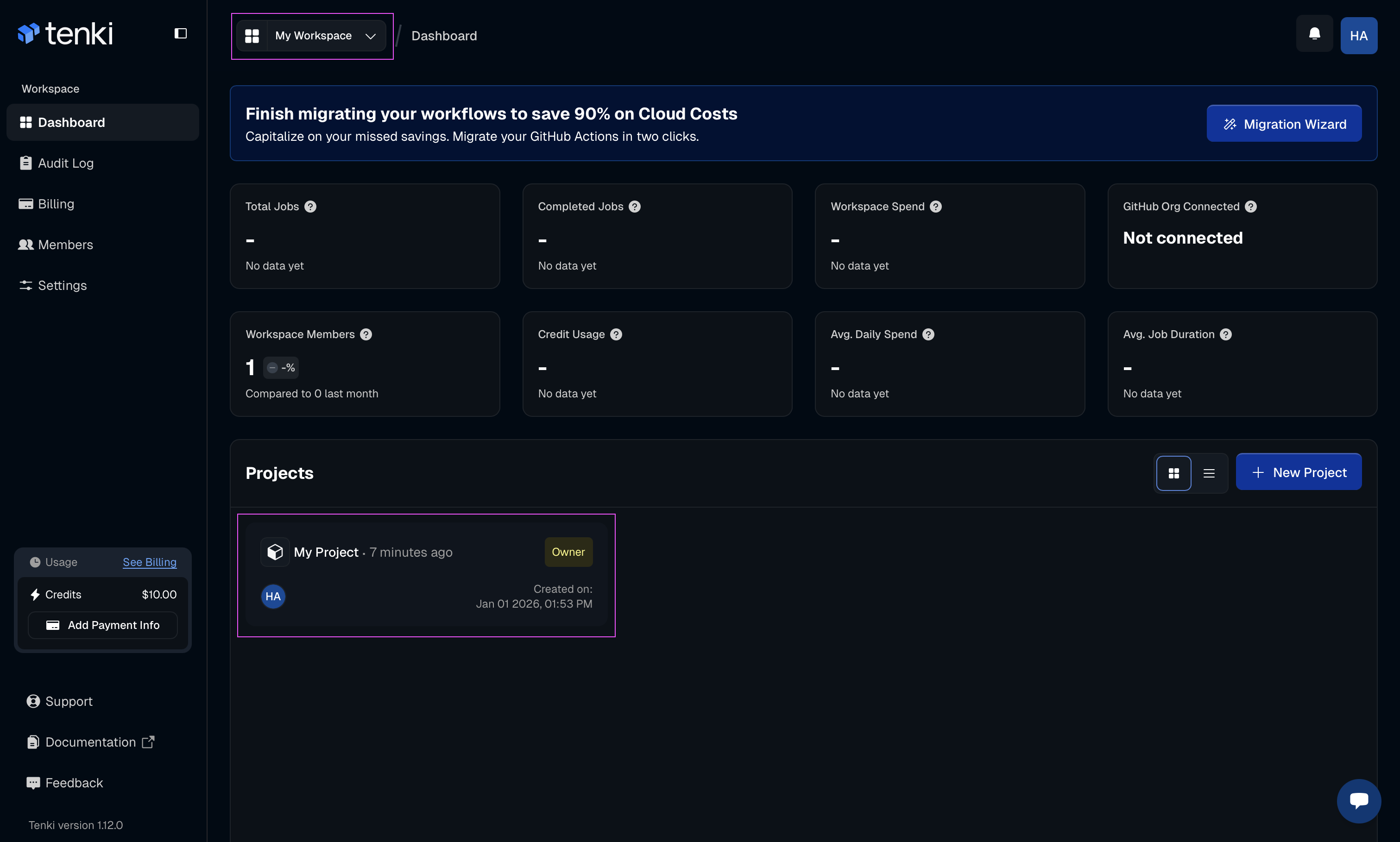
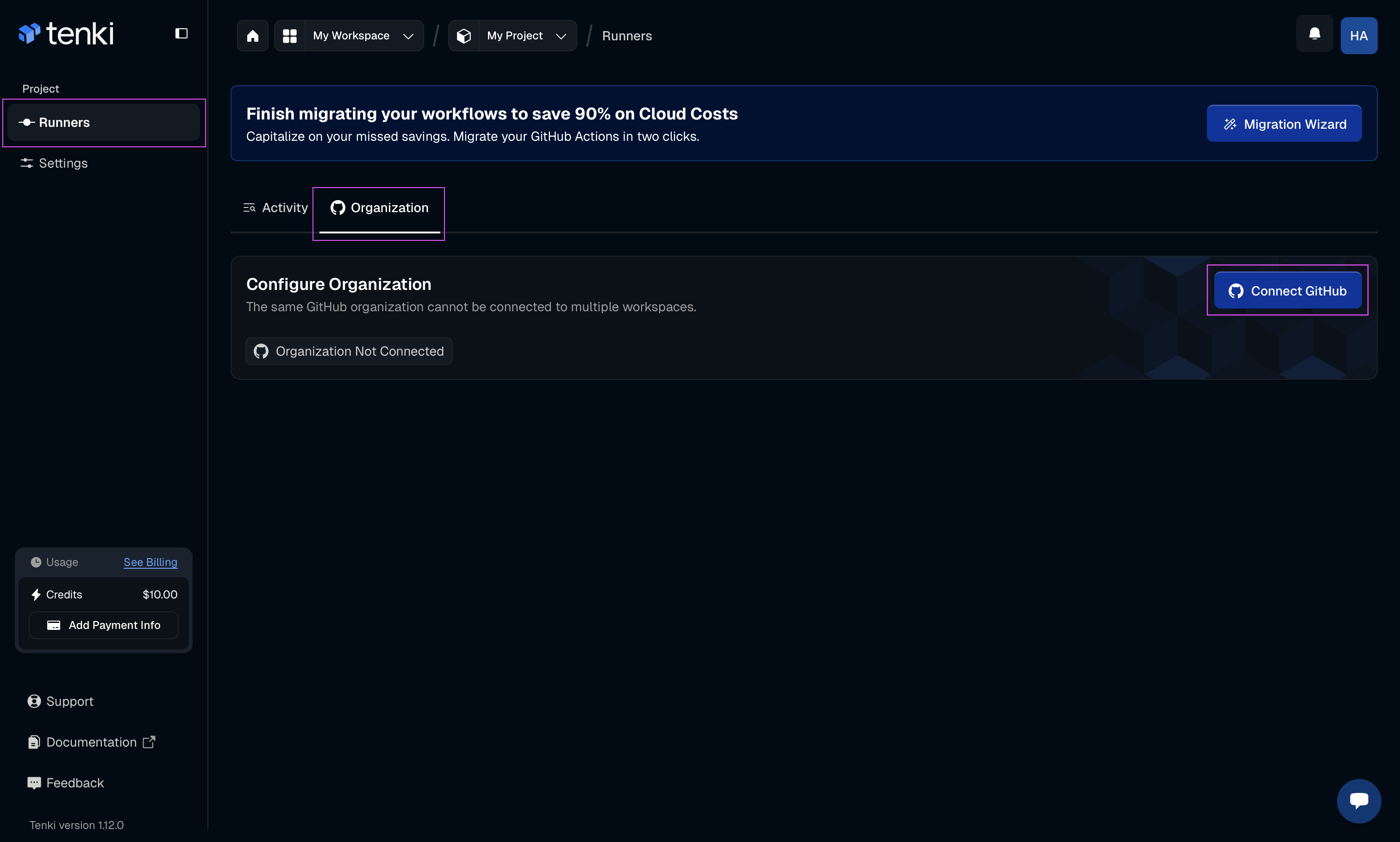
Access the Organization tab
Now within the Runners section click on the Organization tab and then click on the Connect GitHub button
Application installation
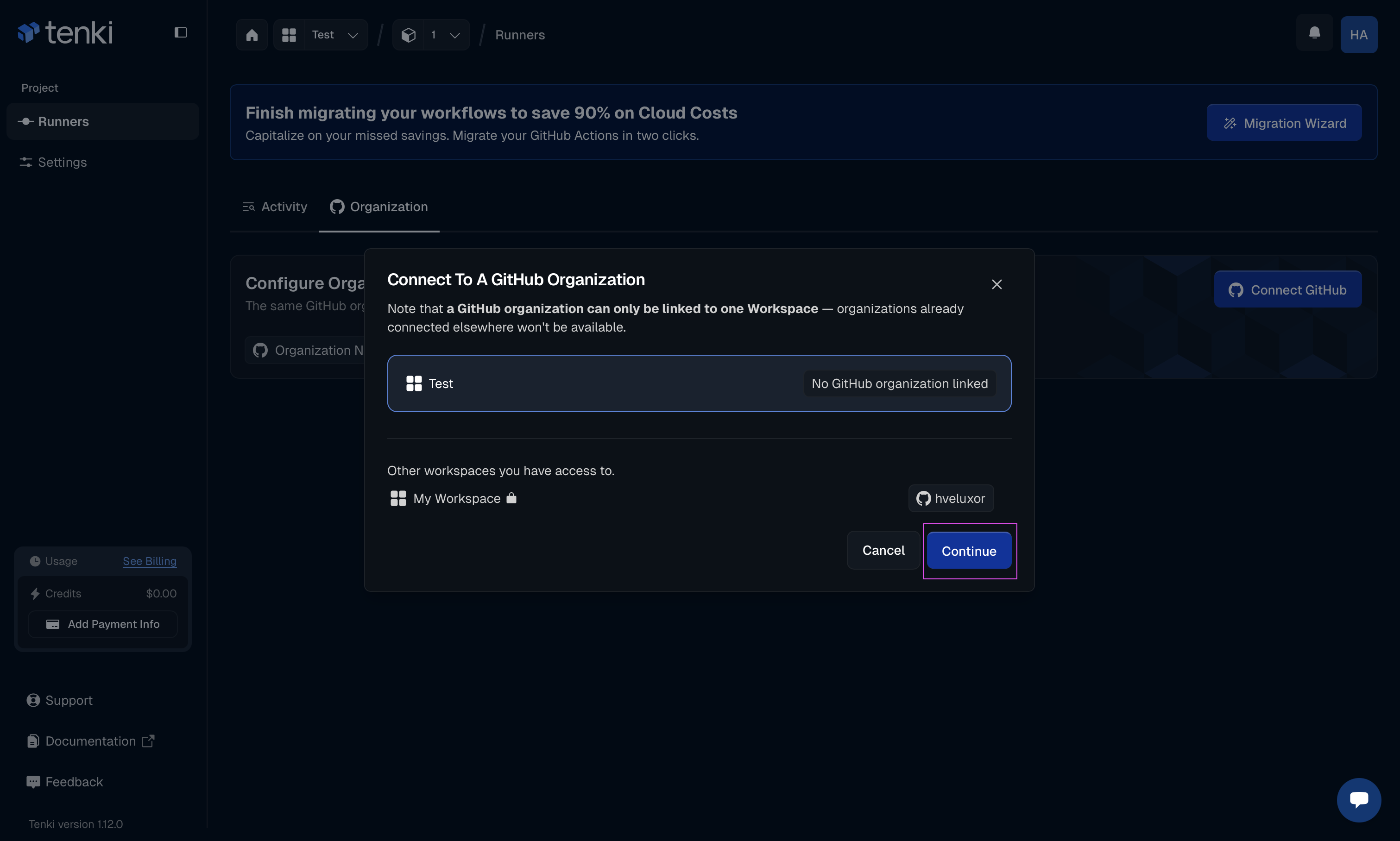
You’ll see a modal displaying all your workspaces and the GitHub Organizations they are linked to. This helps ensure a unique connection, as each GitHub Organization can be connected to only one Tenki workspace.
Below is an example of how this looks after you’ve created a second workspace. If you only have one workspace, the Other workspaces you have access to section will be empty.
You can click on continue:
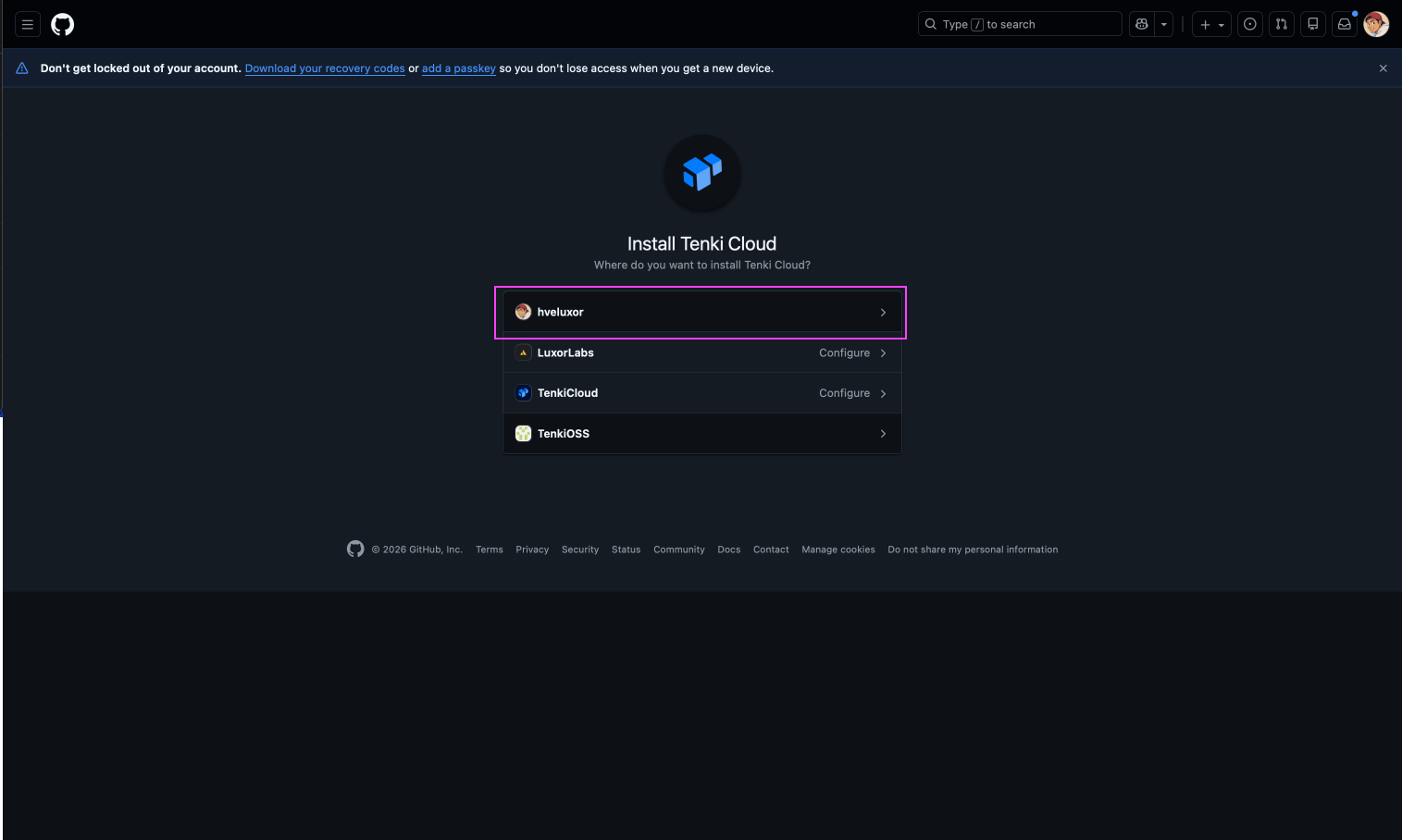
Select your GitHub user:

Select your GitHub Organization:
Select the level of access you want to provide and click on Install & Authorize:
Verify the connection
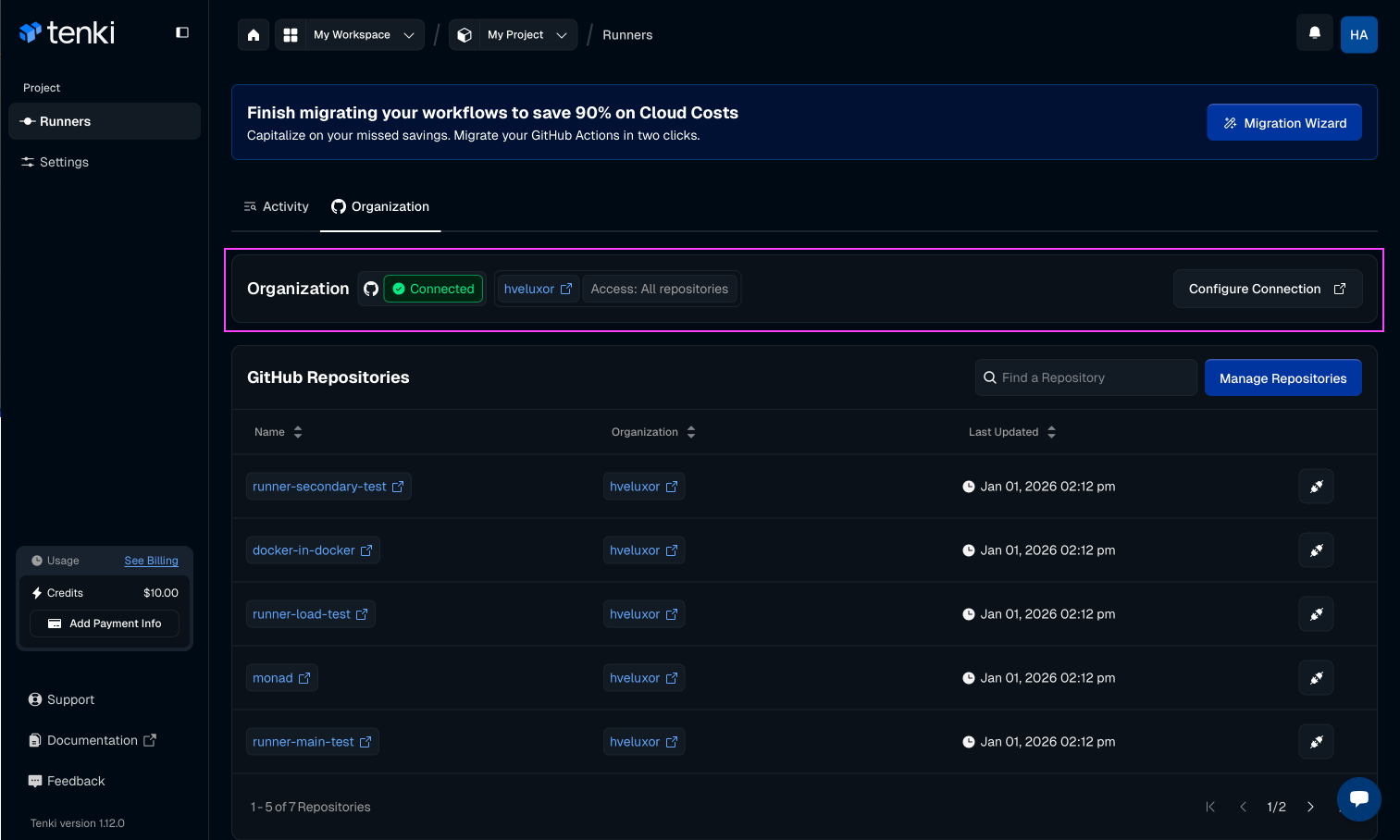
After installation and authorization, simply verify that everything is set up correctly. Then navigate back to the Organization tab, where you should see your GitHub Organization successfully connected.
3. When you're not owner of the GitHub Organization
When you try to install the Tenki GitHub Application on an organization where you’re not an owner, the process is slightly different. Instead of installing the application directly, you submit a request for installation.
You’ll be prompted to confirm the request, after which the organization owners will be notified. They can review and approve the installation from the GitHub UI. Once an administrator approves the request, the installation is completed and the connection proceeds automatically.
Maintain/Update the connection
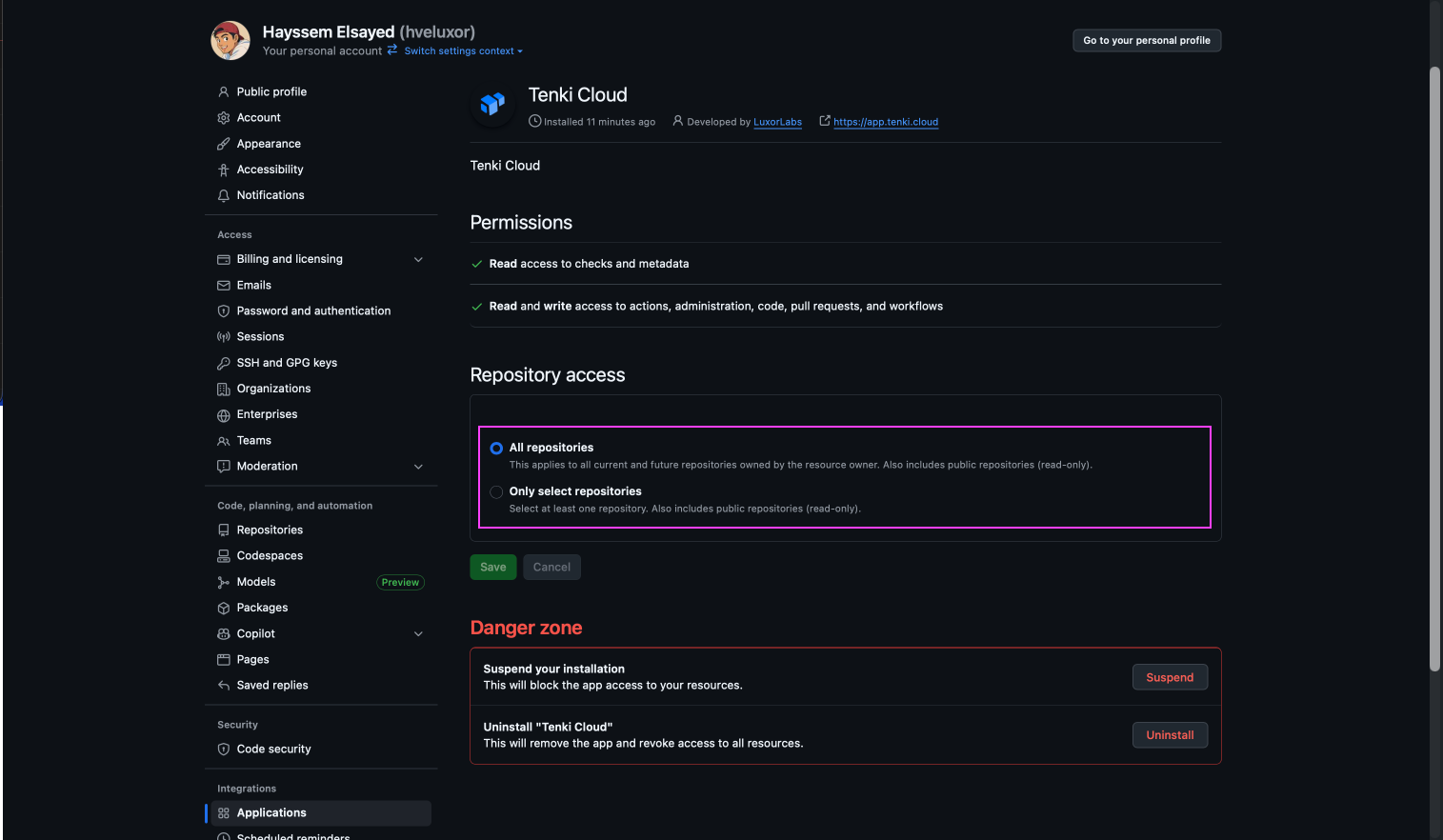
Whenever you need to review access levels or add or remove repositories, go to the Organization tab and click Configure Connection:
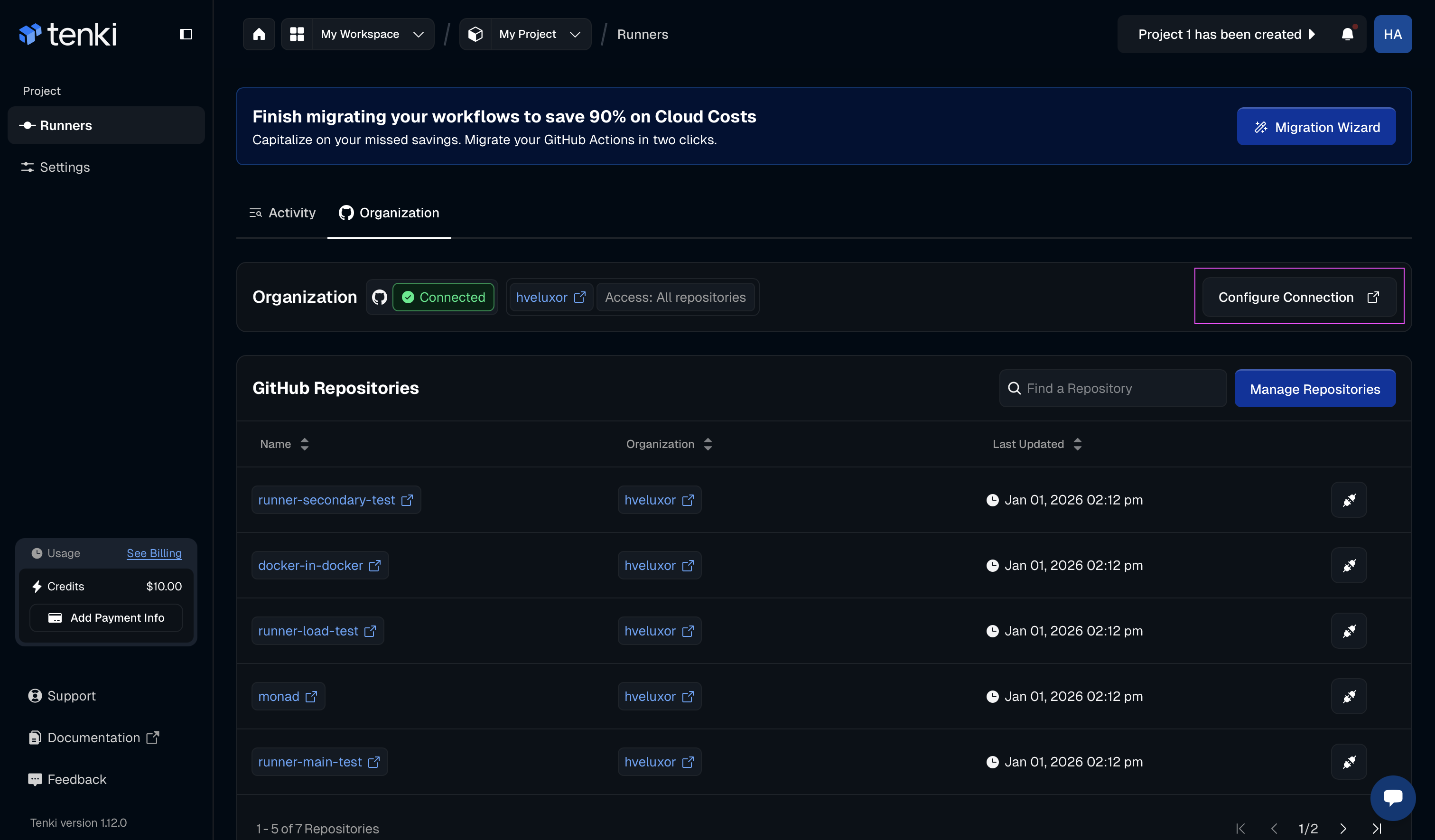
You’ll be redirected to the GitHub interface, where you can manage which repositories the application has access to: