Account
Manage API Keys
Create, store, rotate, and revoke Tenki API keys for Sandbox SDKs, CLI automation, and CI.
Tenki API keys authenticate the Sandbox SDKs and non-interactive CLI sessions. A key begins with tk_, and the
SDKs read it from the TENKI_API_KEY environment variable by default. Tenki Runners and Code Reviewer use their
GitHub App connections instead of API keys.
Create an API key
- Sign in to the Tenki dashboard and select Tenki Sandbox.
- Complete Sandbox onboarding. Tenki creates the initial API key for you; copy it when it is shown and save it in your shell or secret manager.
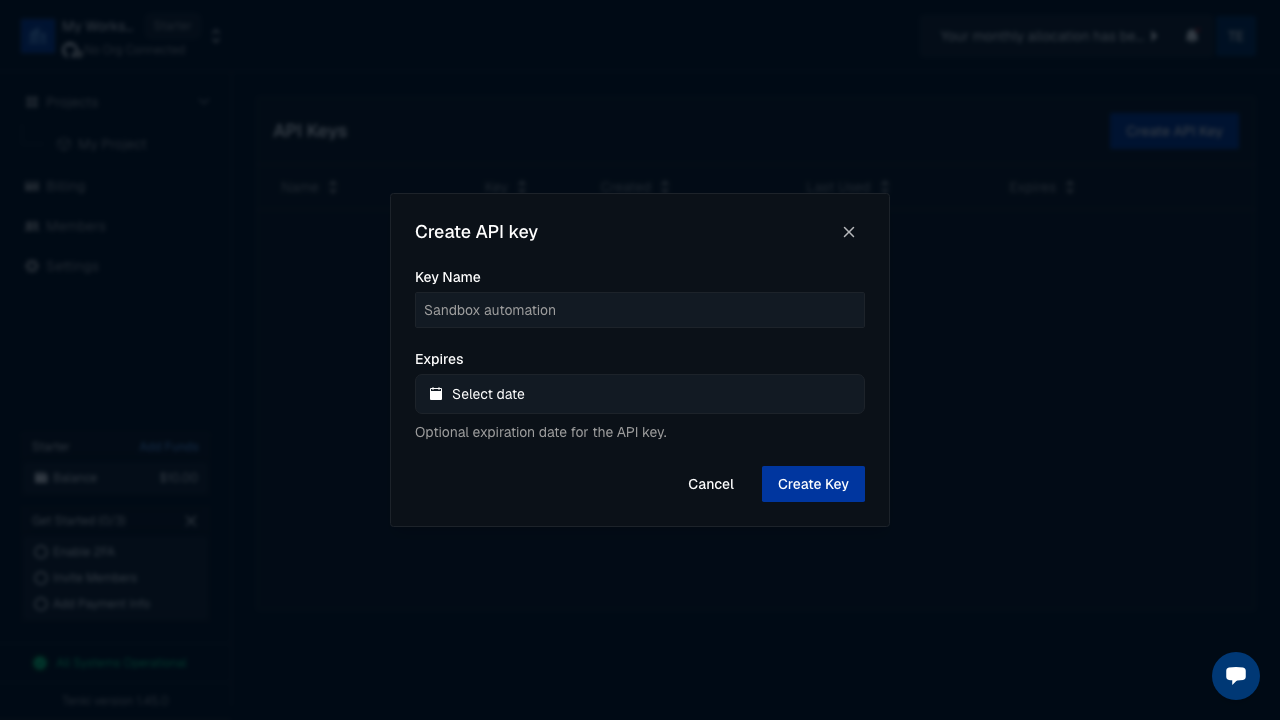
- To create another key or control expiration, open API Keys and select Create API Key.
- Enter a Key Name, optionally select an expiration date, and select Create Key.
- Copy the new key when it is shown and store it securely.
Use the key
Export the key before running an SDK program:
export TENKI_API_KEY=tk_your_api_keyFor a non-interactive CLI login, pass the same value directly:
tenki login --api-key tk_your_api_key
tenki status
Each API key belongs to exactly one workspace. Sandbox requests infer that workspace from the key, so normal CLI and SDK calls do not need a workspace ID.
Rotate or revoke a key
To rotate a key without interrupting automation:
- Create a replacement key.
- Update every application, CI secret, or secret manager that uses the old key.
- Verify the replacement key with
tenki statusor an SDK request. - Return to API Keys, select the delete button beside the old key, and confirm Revoke API Key.
Revocation takes effect immediately and cannot be undone.
Keep keys secure
- Store keys in a secret manager or your CI provider's encrypted secrets.
- Never commit a key to source control or paste one into an issue, pull request, or support message.
- Use descriptive names so you can identify each key's owner and purpose.
- Set an expiration date appropriate for the workload and revoke keys that are no longer used.
- If a key is exposed, replace it and revoke the exposed key immediately.