Cursor Origin
Connect Tenki Code Reviewer to Cursor Origin and get reviews on your Origin pull requests.
Tenki Code Reviewer reviews pull requests on Cursor Origin the same way it reviews them on GitHub: it reads the change, posts findings on the lines they apply to, and leaves a verdict on the pull request. Your review settings apply to both providers.
Connect from Tenki
Open Code Reviewer in your workspace and select Install App next to Cursor Origin. If GitHub is already connected, use the install button in the Cursor Origin row under Configuration → Connections instead.
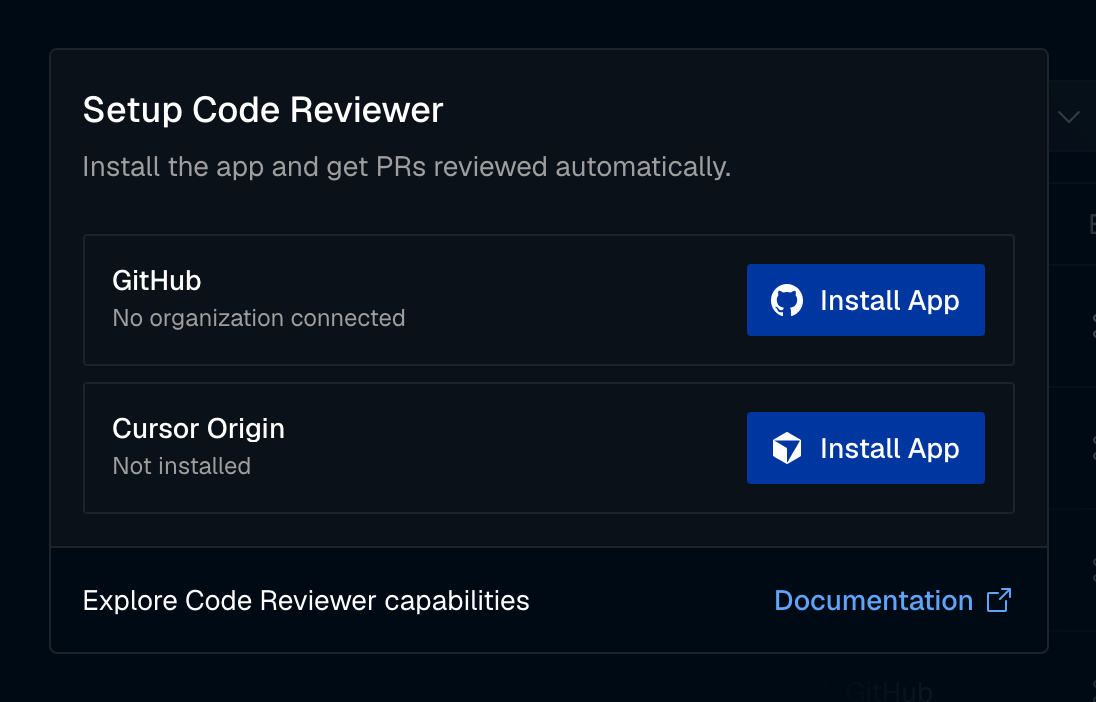
Cursor opens the install page for your namespace. Choose All repositories or Select repositories, review the permissions under Granted Permissions (listed below), and select Install. If Tenki is already installed, the button reads Reinstall.
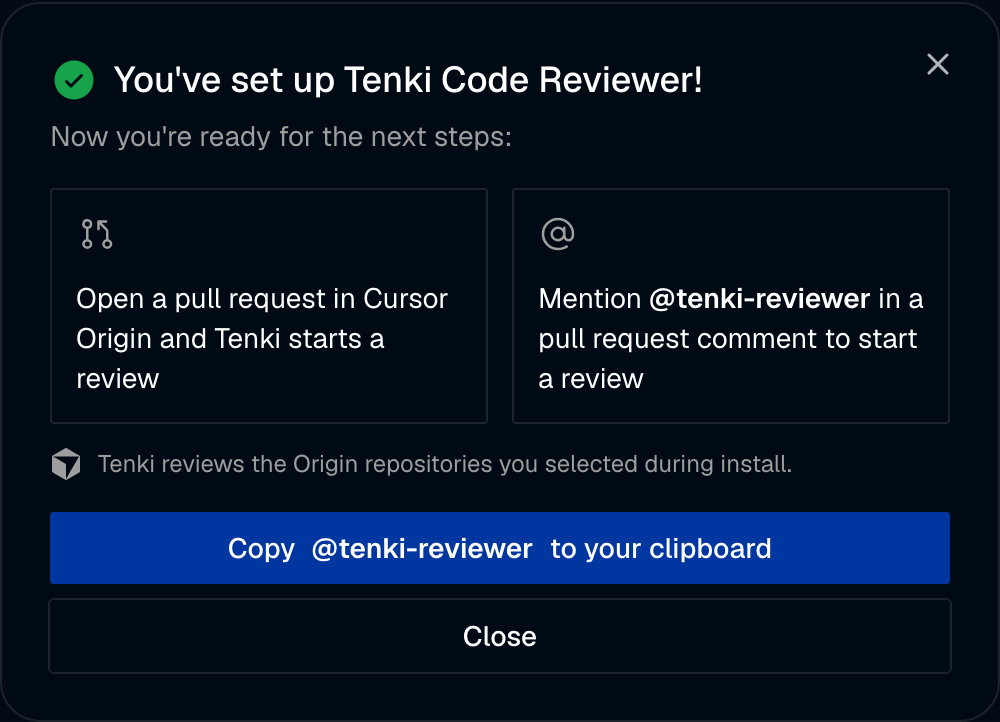
Cursor sends you back to Code Reviewer. Open a pull request in one of the selected repositories, or mention @tenki-reviewer in a pull request comment, to get your first review.
Connect from Cursor
You can also install Tenki from Cursor. In your namespace's codebase settings, open Apps, find Tenki under Code Review in the App Marketplace, and select Install. After the install, Cursor sends you to Tenki to finish:
- Sign in or sign up to Tenki with the same email address you use on Cursor. Tenki uses it to match the install to you.
- Choose a workspace for the namespace and select Connect.
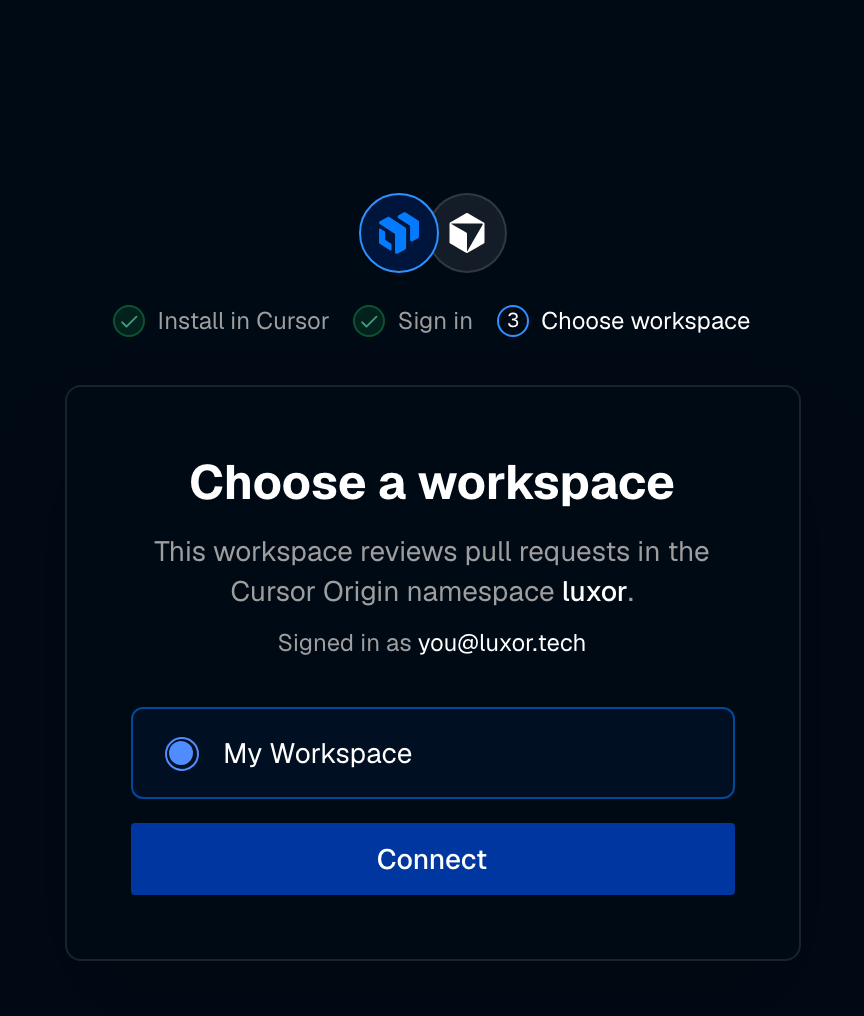
Code Reviewer opens in that workspace and confirms the setup once the connection finishes. If the namespace is already connected to a Tenki workspace, Cursor sends you straight back to that workspace.
The link Cursor sends you to expires after 2 hours. If it expires, install Tenki again from Cursor or from Code Reviewer.
A workspace connects to one Cursor Origin namespace, and a namespace connects to one workspace. You can connect a GitHub organization to the same workspace.
Permissions
Tenki requests the minimum access it needs to review pull requests. Cursor lists these permissions on the install page and on Tenki's app page:
| Scope | Permission | Why Tenki needs it |
|---|---|---|
| Repo Contents | Read repository metadata | Find the repository and its default branch |
| Repo Contents | Read repository contents, branches, and commits | Read the code around the change |
| Pull requests | Read pull requests and changed files | Read the pull request and what it changes |
| Pull requests | Read pull request comments and reviews | Read existing review threads and replies |
| Pull requests | Create and update pull request comments and reviews | Post the status comment, findings, replies, and the verdict |
| Pull requests | Create and update pull requests | Add the PR Walkthrough to the description |
| Pull requests | Read check suites and runs | Find its own check on the pull request |
| Pull requests | Create and update check suites and runs | Report the Tenki Code Review check |
Tenki never pushes code or changes your repositories.
Choose which repositories get reviewed
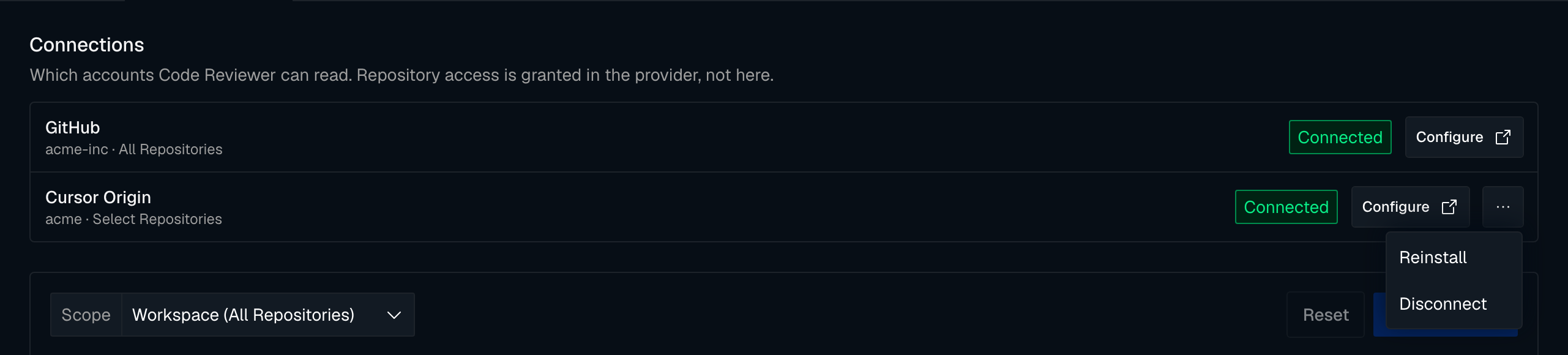
Repository access is set in Cursor, not in Tenki. Select Configure next to Cursor Origin under Code Reviewer → Configuration → Connections to open Apps in Cursor's codebase settings.

Open Tenki, then select Manage under Repository Access to switch between all repositories and a selection. New repositories in the namespace are picked up automatically; you don't need to reinstall.

Cursor gives apps read-only access to repositories synced from GitHub, so Tenki doesn't review those through Cursor Origin. Connect GitHub to review them.
When Tenki reviews a pull request
Tenki reviews an Origin pull request when:
- it is opened (draft pull requests wait until they are published)
- a draft is published
- new commits are pushed, if Review on Push is on
- someone mentions
@tenki-reviewerin a comment
Reopened pull requests are not reviewed again automatically; mention @tenki-reviewer to request a review. Automatic reviews follow Automatic Review.
What a review looks like on Cursor Origin
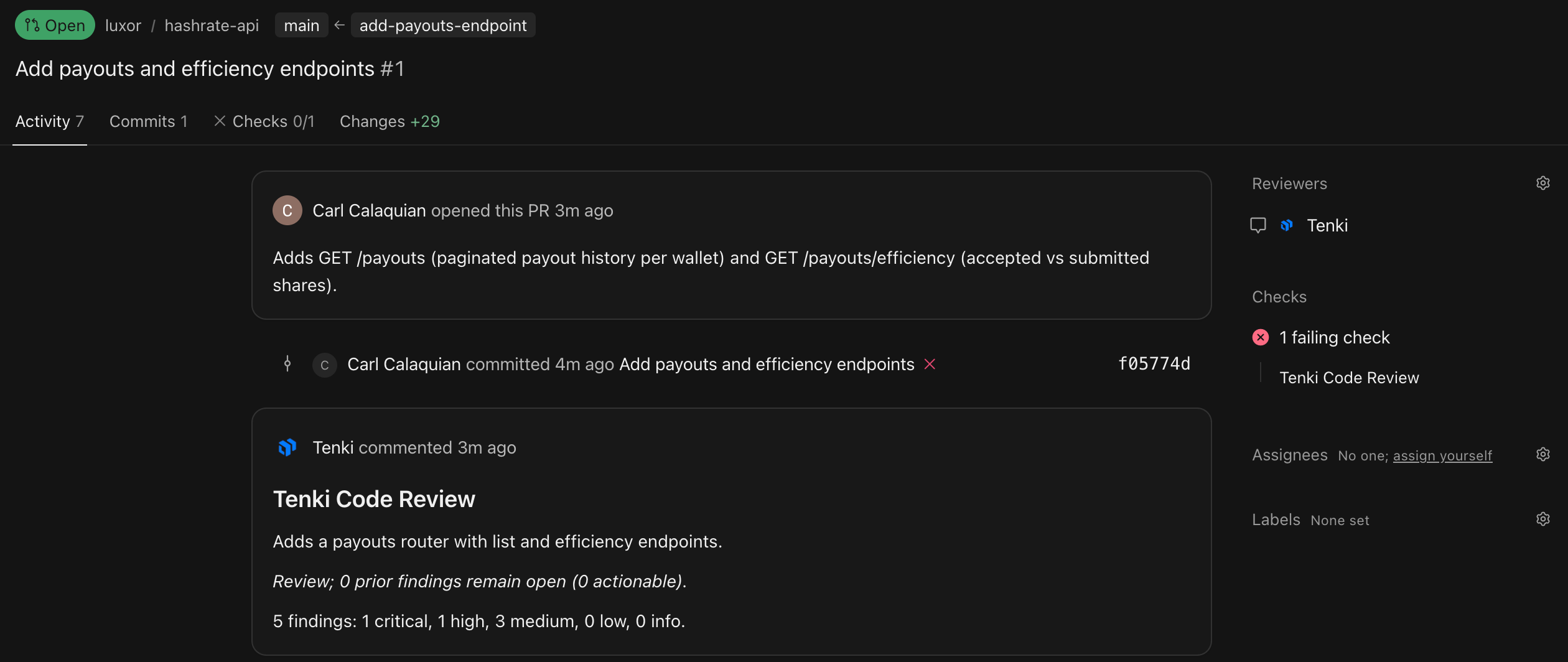
- Status comment. As soon as the review starts, Tenki posts "Tenki is reviewing this pull request…". When the review finishes, the same comment becomes the summary, with a count of findings by severity. If the review is cancelled, it reads "Review cancelled."
- Findings. Each finding is a thread on the lines it applies to, with its severity and category, an explanation, a suggested fix, and a link to the lines. With Comment Detail Level set to Detailed, it also includes a Prompt for AI Agents block. If a line can't be anchored, the finding is posted on the file or as a general comment.
- Verdict. Tenki submits a review that points to the summary. It approves the pull request when nothing worse than nitpicks is open and Approve on Clean Review is on. A new verdict replaces the previous one.
- Check. The Tenki Code Review check fails while Critical, High, or Medium findings are open on the pull request, including open findings from earlier reviews. Low findings don't fail it.
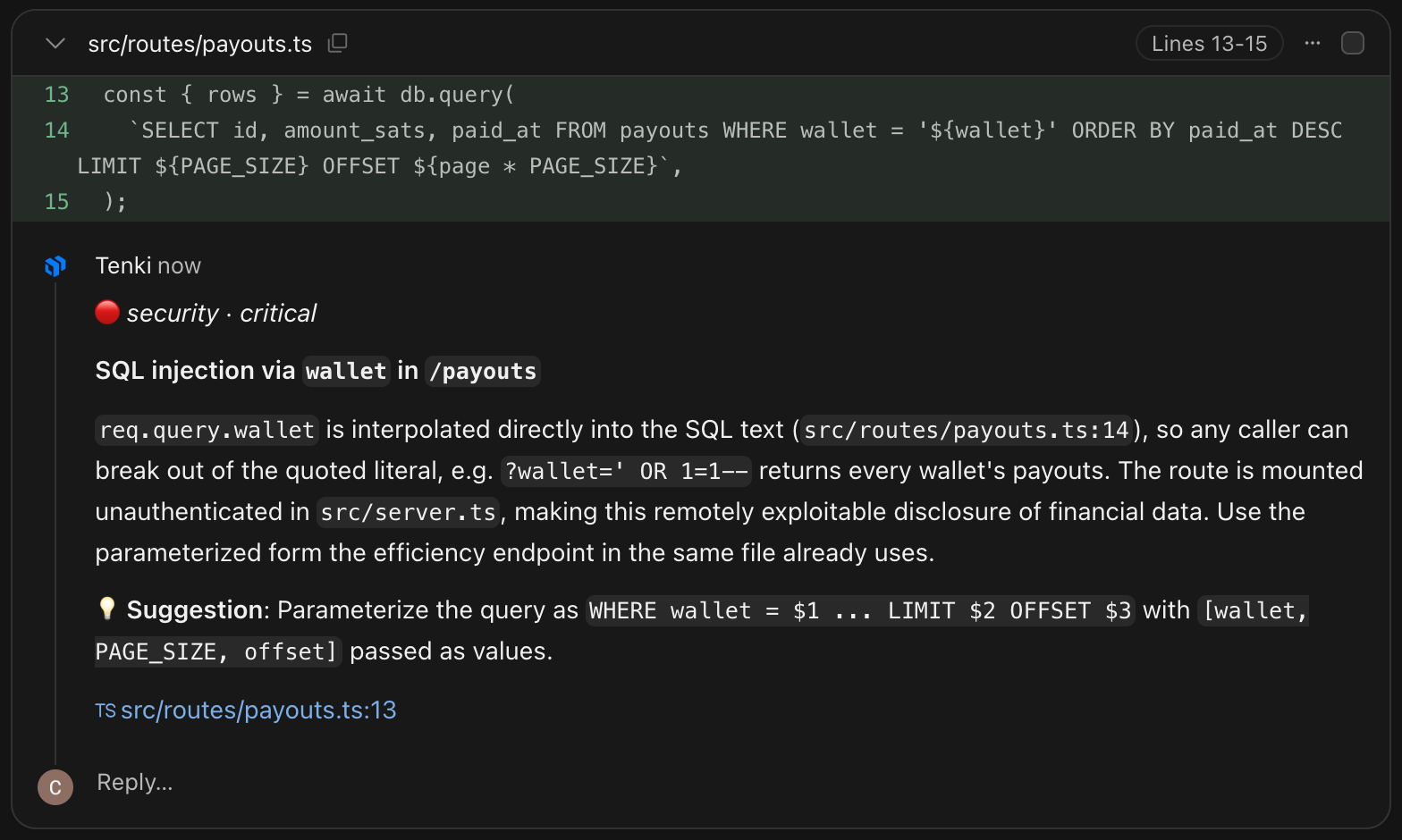
Tenki replies when you answer in one of its finding threads, or when you mention @tenki-reviewer in any thread.
Dismiss a finding
On Cursor Origin, you dismiss a finding by replying in its thread. Tenki treats the finding as dismissed when your reply contains one of these phrases:
- false positive
- not an issue
- not a bug
- won't fix (or wontfix)
- by design
- intended behavior (or intended behaviour)
- working as intended
A negated phrase, such as "this is not a false positive", doesn't count. Tenki records the dismissal and doesn't raise the finding again on later reviews.
Differences from GitHub
| GitHub | Cursor Origin | |
|---|---|---|
| Tenki Code Review check | Informational | Fails while Critical, High, or Medium findings are open |
| Ignore Usernames | GitHub usernames | The author's email address |
| Disconnect from Tenki | Uninstall the app in GitHub | Disconnect in Code Reviewer, or uninstall in Cursor |
Reviews on both providers are billed the same way. See Settings.
Reinstall or disconnect
Use the ⋯ menu next to Cursor Origin under Code Reviewer → Configuration → Connections:
- Reinstall runs the Cursor install flow again.
- Disconnect uninstalls Tenki from the namespace and stops reviews. Past reviews stay available in Code Reviewer.
You can also Suspend or Uninstall Tenki from its page under Apps in Cursor's codebase settings. Suspending pauses reviews without removing the app.
Frequently asked questions
Tenki says it was installed by a different account. Sign in to Tenki with the email address you use on Cursor, then open the link from Cursor again.
Tenki says this workspace already uses Cursor Origin. A workspace connects to one namespace. Disconnect the current namespace under Code Reviewer → Configuration → Connections, or choose another workspace.
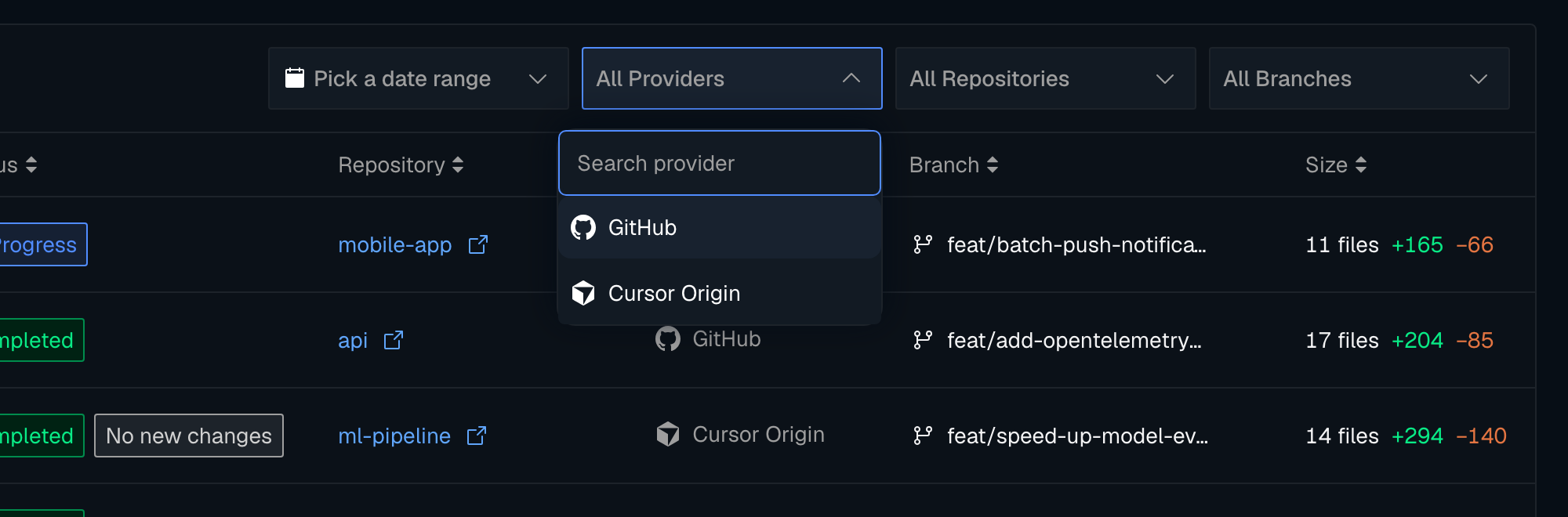
Where do I see Origin reviews in Tenki? On the Reviews tab of Code Reviewer. Use the All Providers filter to show only Cursor Origin reviews; pull request and repository links open on cursor.com.